
[PR]上記の広告は3ヶ月以上新規記事投稿のないブログに表示されています。新しい記事を書く事で広告が消えます。
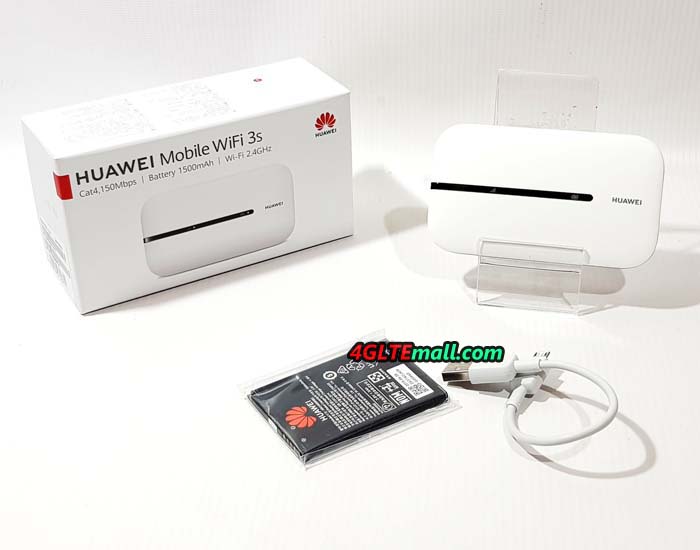
The Huawei Mobile WiFi 3s has recently become a very affordable mobile LTE router in European countries. The Huawei MiFi 3S, which is also marketed under the model name Huawei E5576-320, can be used with all SIM cards.
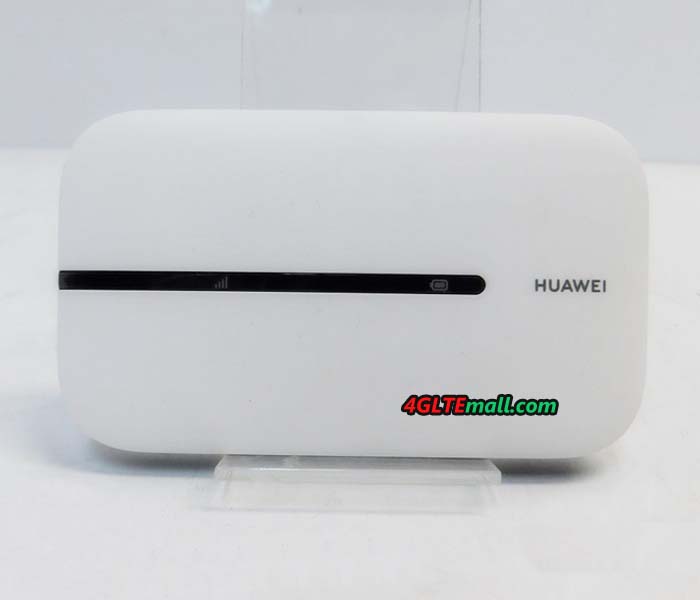
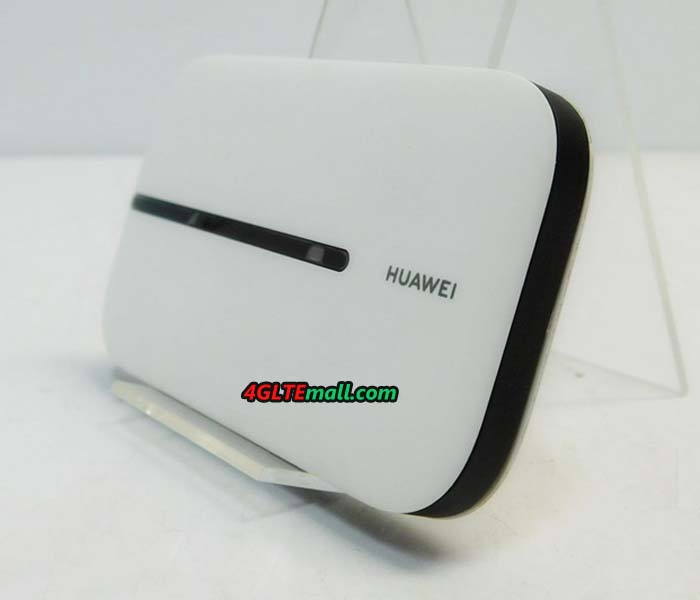
Of course, you shouldn't expect high-end equipment at the very reasonable price. For example, there is no display on the front - this is often standard for more expensive 4G LTE hotspots. For this, the Huawei E5576 is very small and handy and can be perfectly carried in your pocket or in your backpack.
The Huawei E5576 is made entirely of plastic and available in black and white. In addition to the device itself, the scope of delivery also includes an approximately ten centimeter long USB to micro-USB cable, a 1,500 mAh battery, a quick start guide and a warranty card. There is no need for a power pack to charge the battery, but you can use any existing USB power pack.
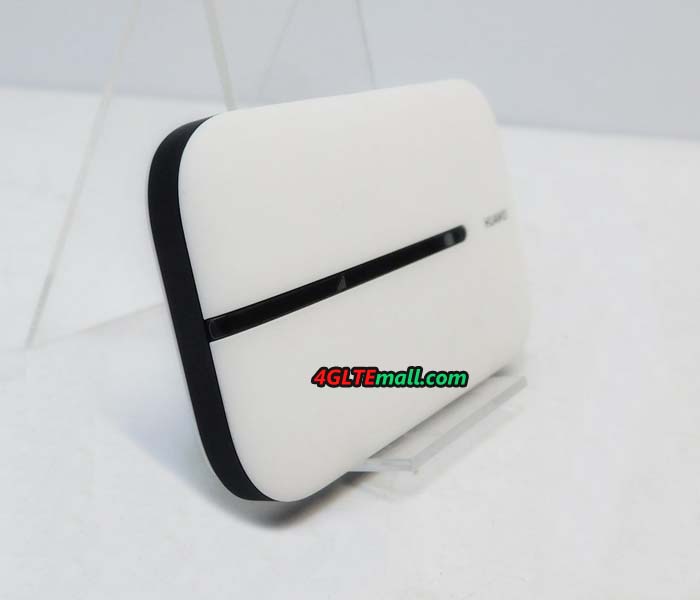
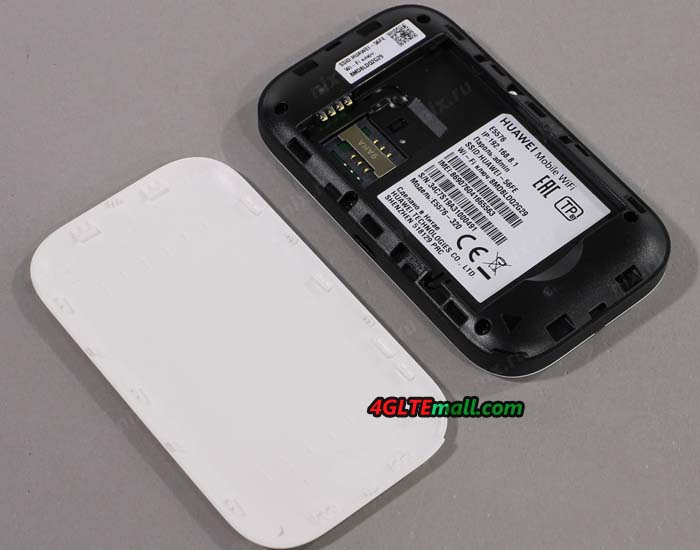
The Huawei E5576 Mobile WiFi 3s hotspot makes a good first impression. The material used feels good and the button for switching on and off on the top has a good pressure point. The back can be easily removed to insert the SIM card (Mini-SIM format, 2FF) and the battery.
At first glance, it is negative that Huawei has not installed any connections for an external cellular antenna and continues to rely on the micro USB standard. USB Type C would have been appropriate here in 2020.
Unlimited SIM cards from Telekom and O2 were used for the test. Unfortunately, the performance in the LTE network via WLAN was very poor. Tested with several end devices, the speed rarely exceeded 20 Mbit/s. In the peak, about 23 Mbit/s in the downlink and about 33 Mbit/s in the uplink could be reached via WLAN.
LTE Modem In the Test
The speeds were significantly better when the Huawei E5576 was connected via USB. Well over 100 Mbit/s in the downlink and almost 50 Mbit/s in the uplink were possible. These measurement results show that the modem can deliver high speeds, but the bottleneck is to be found in the weak WLAN module. In comparison with an expensive high-end LTE hotspot such as the Huawei E5788 and Netgear Nighthawk M2, it also shows that the LTE network can do much more than the small Huawei E5576 gets out of the connection.
The minimum latency (ping) was always well below 20 milliseconds - the small Huawei E5576 hotspot is in no way inferior to much more expensive end devices.
The Huawei E5576 can be used in almost every UMTS and LTE network in Europe, since all important frequency ranges are supported. Incidentally, the modem is not capable of 2G / GSM, which, given the now very good LTE networks, is no longer tragic. The following frequency ranges are supported in detail:
On other continents such as Asia, North America or South America, you have to be prepared for the fact that many LTE networks cannot be used or can only be used to a very limited extent. The Huawei E5576 does not support the frequency bands required for this.
WLAN in the test
The WLAN module of the Huawei E5576 Mobile WiFi 3s works exclusively in the frequency range around 2.4 GHz and can supply up to 16 devices with a WLAN connection at the same time. The WLAN name and password can of course be assigned individually.
Unfortunately, the WLAN module did not do well in the test. The connection was always stable, but as described in the LTE modem test, it was relatively slow. Often, only 73 Mbit/s gross data rate was displayed on the MacBook. The speed is sufficient for normal surfing and video streaming, but the maximum LTE speed of 150 Mbit/s cannot be reached via WLAN. The range was also quite short, there shouldn't be more than one wall between the Huawei E5576 and the end device.
For example, the channel bandwidth can be set via the advanced WLAN settings. There is also the option of setting up an automatic standby mode for the WLAN network when no devices are connected. This helps to save energy.
It is easy to set up a second SSID (guest access). The name, the password and the desired duration for the guest access can be set individually. Huawei offers the options unlimited, 1 day and 4 hours for the duration of guest access.
The WiFi extender is a very interesting function. This means that you can use a different WiFi network than Internet access, for example in a hotel, at a campsite or on the train. This helps to save mobile data volume. There is no noticeable difference for the devices connected to the Huawei E5576, because the WLAN network of the E5576 will of course remain as usual. The WLAN extender is configured either via the web interface or via an app.
Operation and software
The Huawei E5576-320 LTE router can be operated either via the Huawei Smart Home app (for Android and iOS) or via the browser web interface. Right from the first setup, the software offers to change the WiFi password and admin password. Huawei has noted the standard WLAN password both under the battery cover and in the battery compartment.
Since there is no display for operation directly on the device, you have to rely on the corresponding LEDs on the front. These shine in different colors depending on the condition of the battery or depending on the reception and are easy to read. Green LEDs indicate good condition, yellow LEDs indicate poor reception or a weak battery.
Both the web interface and the Huawei Smart Home app offer an attractive, functional design and are easy to use. The web interface can be called up with a device connected to the router via the IP address 192.168.8.1 in the browser. If you use the app, you do not need to enter the IP address. The app is sufficient for most settings, only a few menu items can only be accessed via the web interface, such as the 3G-only mode.
The software of the Huawei mobile WiFi router can be updated via the web interface. If an update is available, the router automatically reports via the web interface.
Battery for up to 6 hours of operation
The battery has a capacity of 1,500 mAh and can be changed by the user without any problems - quite a special feature in today's world. The operating time is specified by Huawei as about 6 hours, this value was confirmed in the test. Depending on the number of connected devices, the operating time may decrease somewhat, but if necessary you can simply buy a replacement battery and thus extend the runtime.
Charging the battery takes about an hour in the test. Operation without an inserted battery, i.e. only via USB power supply, was not possible in the test. The two LEDs flashed red.
Conclusion: good and cheap
The Huawei E5576 Mobile WiFi 3s is one of the cheapest mobile LTE routers. At the cheap price you get a reasonable performance. The well-designed software and simple operation were particularly convincing. The compact design and the removable battery are also positive.
You have to cut back on the weak WLAN performance and the comparatively slow LTE modem. You also have to do without comfort functions such as a display, connections for an external antenna or a memory card. If you don't mind, the Huawei E5576 Mobile WiFi 3s is an LTE hotspot with a good price-performance ratio, which is suitable for normal surfing, checking e-mails and also for occasional video streaming.
 The speeds are made possible by the combination of different mobile technologies. For example, up to 5 frequency bands in the downlink and up to 2 in the uplink can be bundled (carrier aggregation). The support of 256QAM modulation as well as support of 4 × 4 MIMO antenna technology also contributes to the speed increase.
  How fast the Netgear Nighthawk M2 is in the mobile networks, however, also depends on other factors such as network expansion and network utilization. Some network providers already offer some sites with 4 × 4 MIMO, 256QAM and multiple carrier aggregation, so that in certain situations, the modem performance can be used in any case.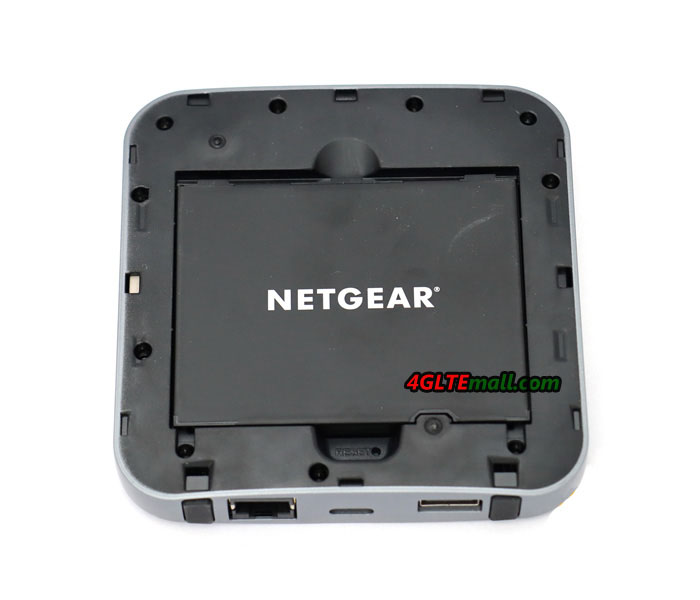
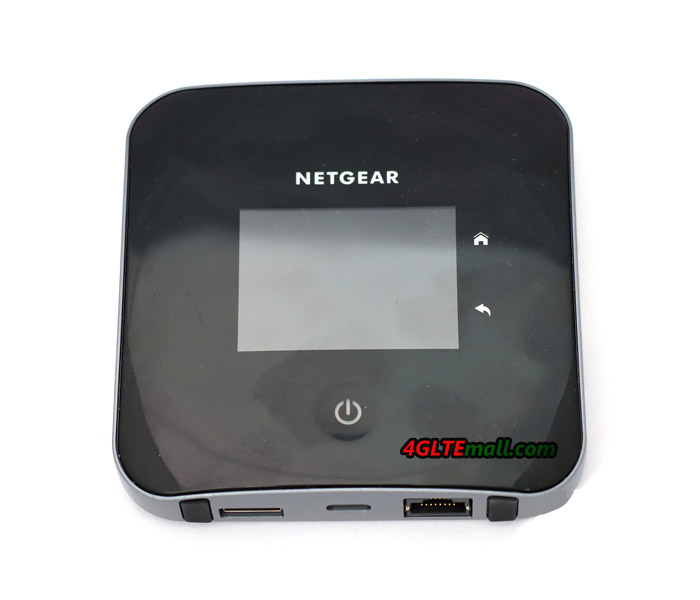
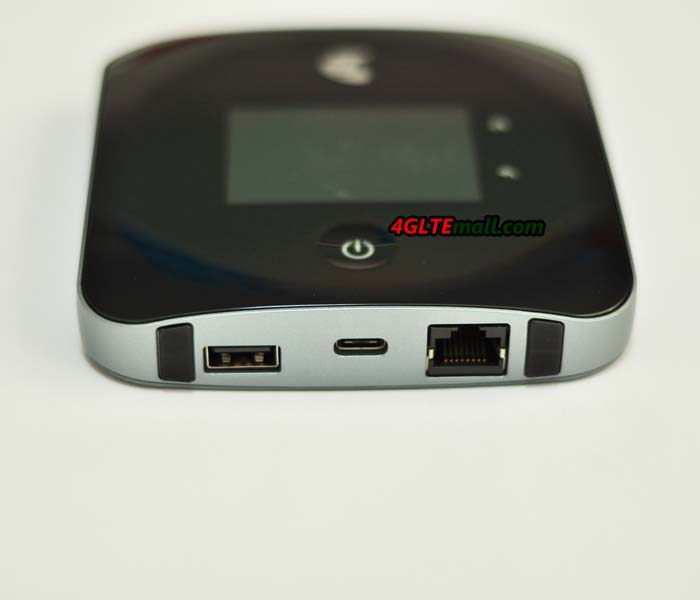
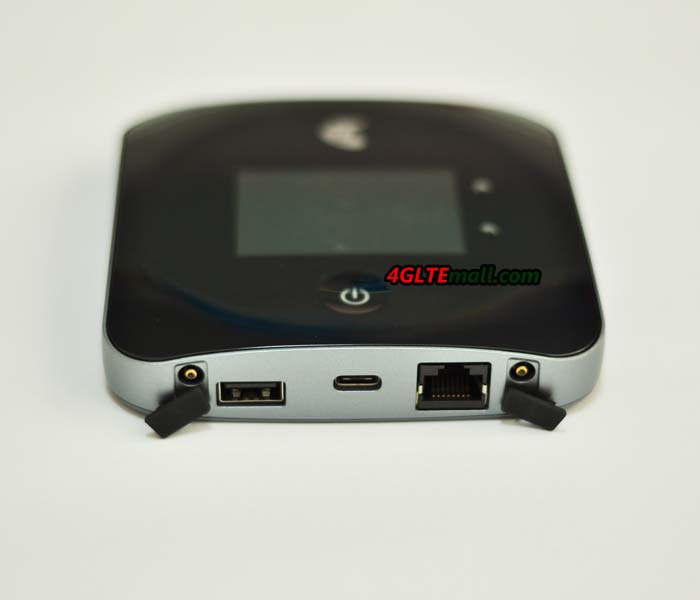
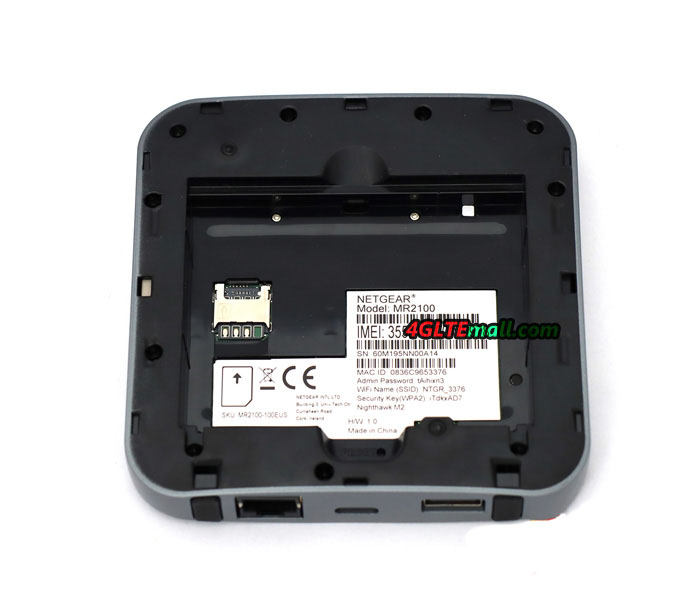 Gigabit WLAN is available at 2.4 GHz and 5 GHz for connection to end devices and up to 20 devices can be connected simultaneously via WLAN. There is also a RJ45 Gigabit LAN port. If required, this can also be used as a WAN connection and thus replace the mobile radio modem. Other connections: a USB type C port for charging the battery and for connecting to a computer and a USB type A port for charging other devices (power bank function) as well as for NAS functions.
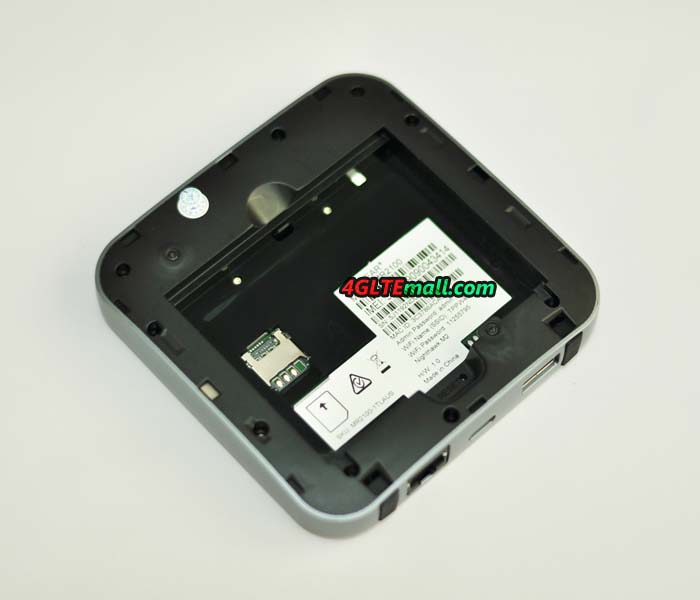
 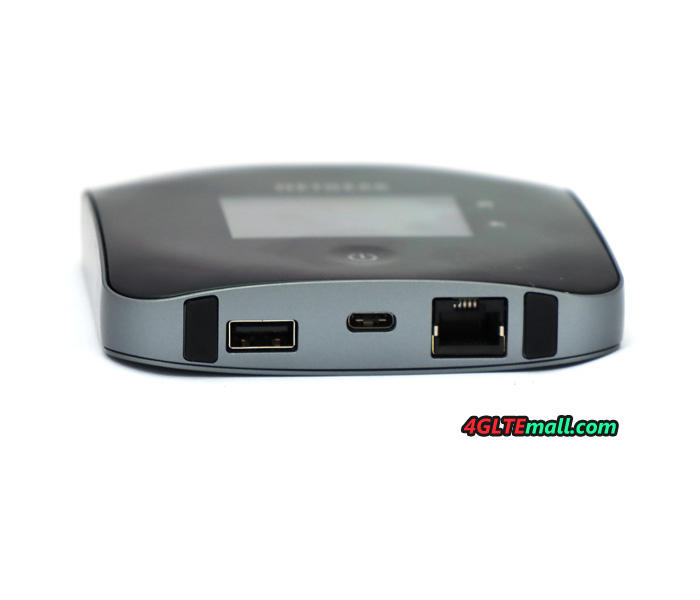 On the side of the Netgear Nighthawk M2 are two TS-9 ports ready for an external UMTS or LTE external antenna. (If you need the 4G External antenna for Netgear Nighthawk M2, welcome to click: https://www.4gltemall.com/netgear-nighthawk-m2-external-antenna.html ). This can be very helpful in poor reception areas to improve connection quality. These features follow the predecessor Nighthawk M1 but very practical and helpful.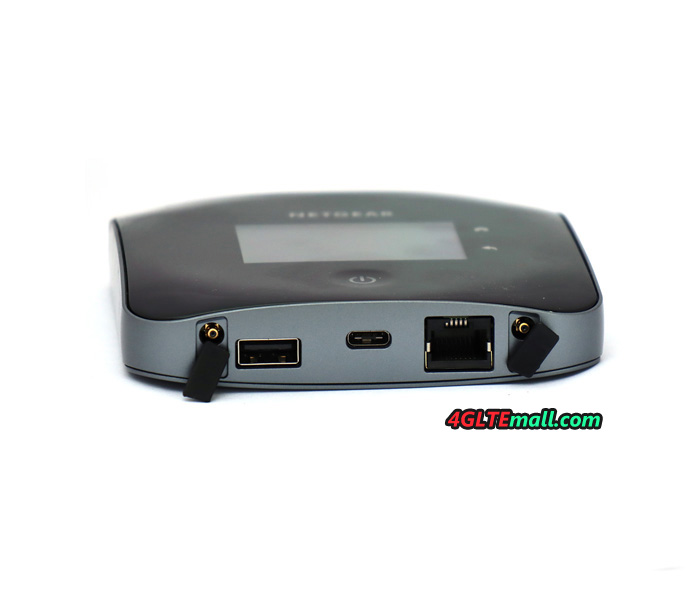
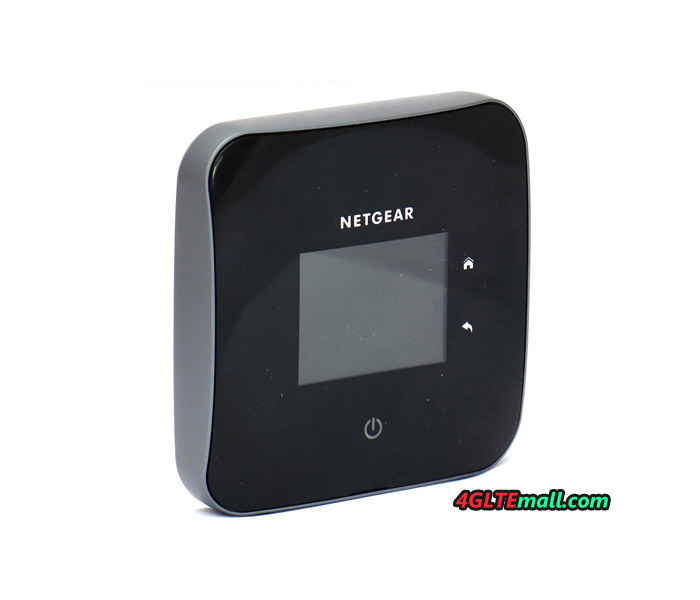
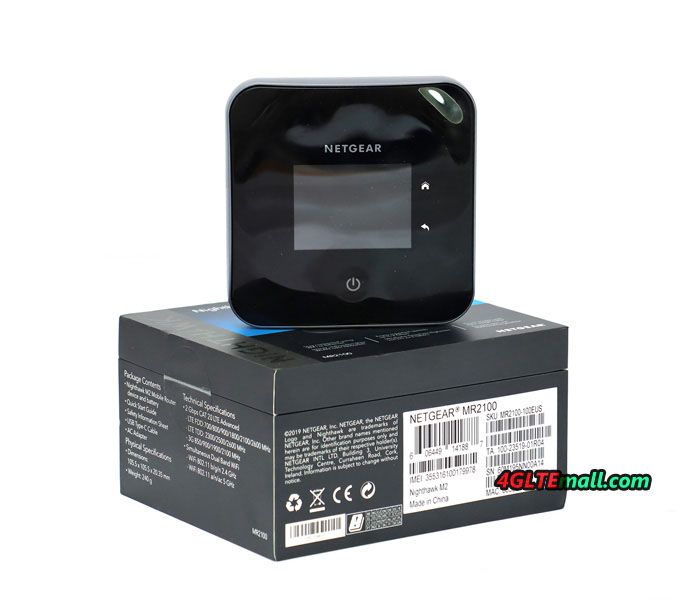
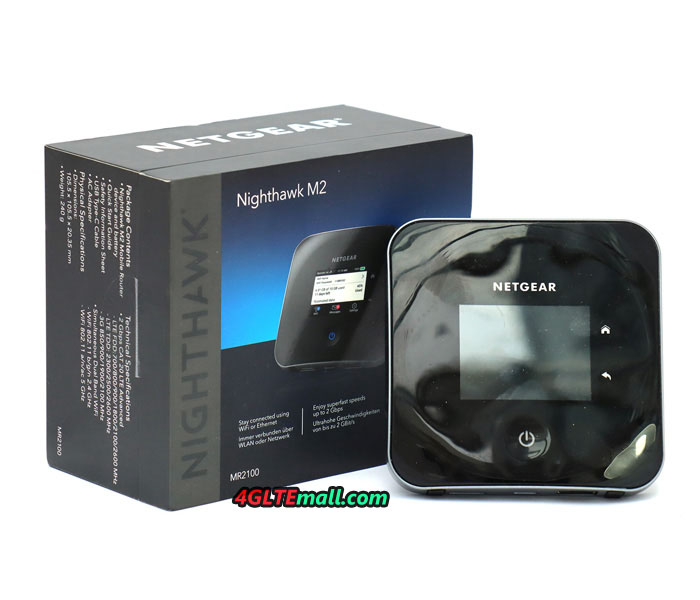
Earlier this year, Netgear introduced the Nighthawk M2, a new mobile hotspot that transforms UMTS or LTE-based Internet access into a Wi-Fi hotspot to provide wireless network for multiple devices such as smartphones, tablets or laptops. The successor of the Nighthawk M1 supports LTE Cat. 20 and in theory allows data transfer rates of up to 2 Gbit/s downstream and 150 Mbit/s upstream.
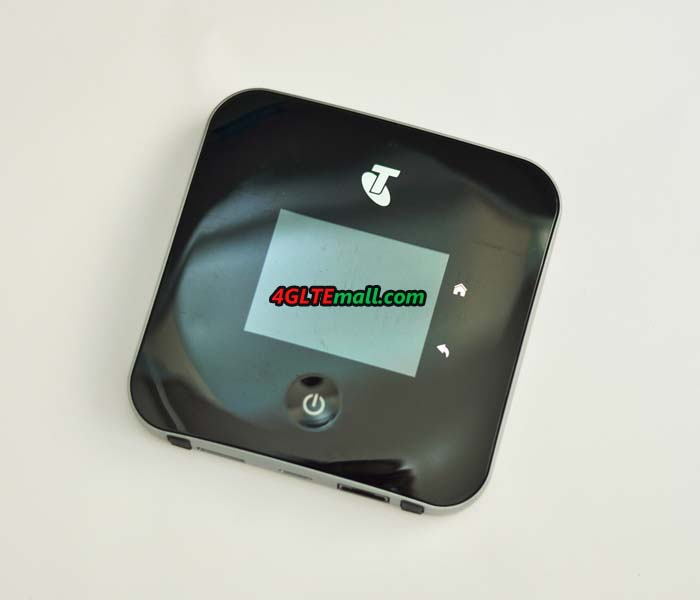
In practice, there are hardly any 4G networks supporting such high data transfer rates. Is still worth the purchase of the mobile hotspot, which is not a bargain with a purchase? We had the opportunity to put the heavy square device to a thorough test.
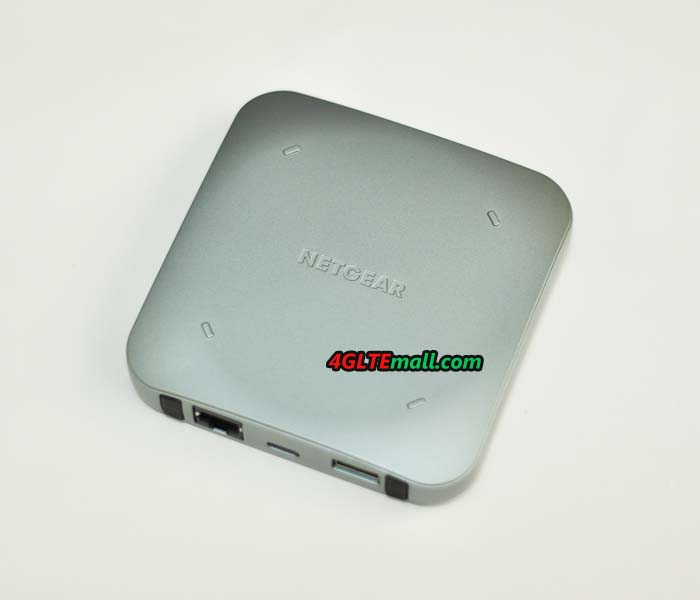
The Netgear Nighthawk M2 mobile router comes in a convenient package. In addition to the router itself, there is the battery and a quick start guide with the power supply and connecting cable. The supplied battery has a capacity of 5040 mAh. The WLAN standards 802.11a, b and g are supported. The 4G mobile hotspot is working on 2.4 and 5 GHz. The Netgear M2 has a USB-A and USB-C as well as an Ethernet interface. There are also connection options for external antennas (Buy Netgear Nighthawk M2 External Antenna). The LAN port can be used to use a wired Internet access instead of the mobile modem and to redistribute it via WLAN.
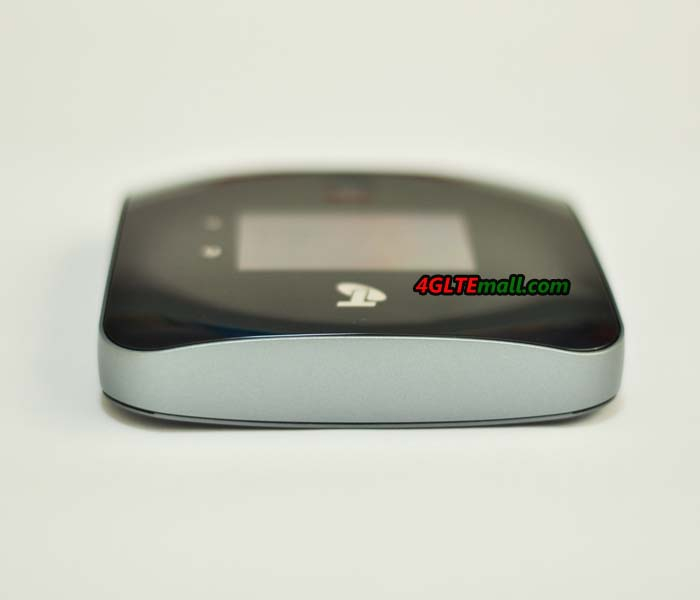
The processing of the Netgear 4G mobile router is impeccable. You can argue about the shiny surface. Here you can see very clear fingerprints very quickly, especially since the Nighthawk M2 has a touch screen, so it regularly gets into the embarrassment of touching the display. The complete initial setup can also be made via the touch-sensitive screen. A separate app or the web-based access to the M2 pocket WiFi router menu is possible, but not mandatory.
We have set up the router right on the touchscreen made, which was not easy. For one thing, the virtual keyboard is quite small due to the display size. So you always catch the wrong letter when typing. In addition, the screen does not respond as well to inputs as used by higher quality smartphones. If the setup of a network identifier (SSID) and the associated password worked quite well, then setting a (somewhat complicated) administrator password was not possible on the second attempt, so we skipped this step and later have made on the configuration via the Netgear Mobile App.
After the initial setup, the Netgear Nighthawk M2 mobile hotspot was immediately ready for use. The configuration for SIM cards is made automatically. As soon as the MiFi was set up, the availability of a firmware update was already displayed. We have installed this over the existing LTE data connection. In the process, around 160 MB of data was transferred. What changes the update brings is unknown. The internet connection via the Netgear Nighthawk M2 was very stable in the test for several hours. It did not matter if we used an Apple iPhone XS Max, a Samsung Galaxy S10+ or an Apple MacBook Pro.
The display of the router shows the current data consumption, the ID of the SIM card provider and the network technology used. There is also a small S-meter, which provides information about the quality of mobile reception. The battery level is also displayed. By default, you can also find the names of the Wi-Fi hotspot and the password via the touchscreen. This display can be deactivated if desired. Numerous settings are possible via the touchscreen menu. First, there is a WPS function. Then the user can limit the hotspot to one of the two WLAN frequency ranges (2.4 or 5 GHz). The connected devices can be displayed and, for example, you can specify whether the hotspot is put into standby mode after a period of non-use to save battery capacity.
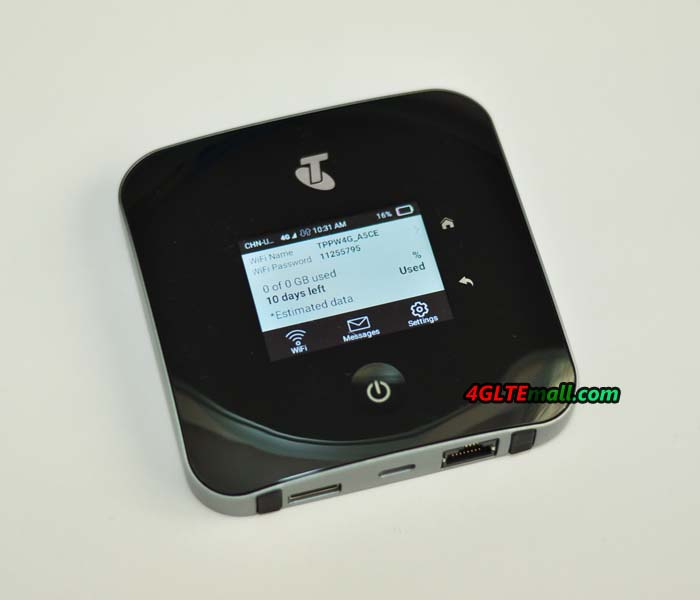
Other possibilities are the restriction of Wi-Fi hotspots to a smaller reception area in order to save battery capacity or the automatic WLAN detach when USB tethering is used. The brightness of the display can be adjusted and the user can decide whether he wants to use the Internet access only in the home network or in international roaming. SMS messages can be sent and received via the Netgear Nighthawk M2. As we have already mentioned regarding the initial setup: The touch screen does not always respond reliably to inputs and the virtual keyboard is quite small. Apart from that, the menu is functional and intuitive to use.
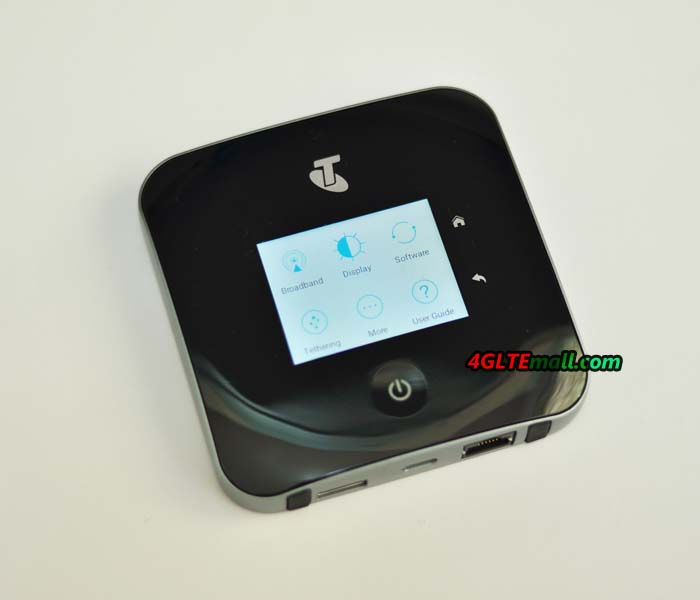
With a SIM card from Vodafone, we have achieved data transfer rates of up to 110 Mbps in the downstream and 61 Mbps in the upstream. This is far from the peak speeds that the Netgear Nighthawk M2 allows, but is more or less equivalent to what the mobile telecom Internet access does with the smartphone. Even in mobile mode, such as a Wi-Fi hotspot in the car, the router performed well in the test. At speed 120Mbps on the highway, the performance of Internet access was still fine. Compared to a WLAN adapter such as the Huawei E8377 CarFi, the Netgear device earns more scores by the possibility to connect an outdoor LTE antenna. In regions with bad LTE coverage, a magnetic base antenna on the car roof provides a significant improvement in reception, which also affects the performance of Internet access.
Although Netgear Nighthawk M2 is well-made and provides stable Internet access for up to 20 devices, flaws such as the only moderately good touchscreen provides bad experience for users. For almost half of the purchase price, the Netgear Nighthawk M1 is available, which supports data transfer rates of up to 1 GBit/s via LTE, more than what the nets usually give out, so this model offers the much better price/performance ratio.
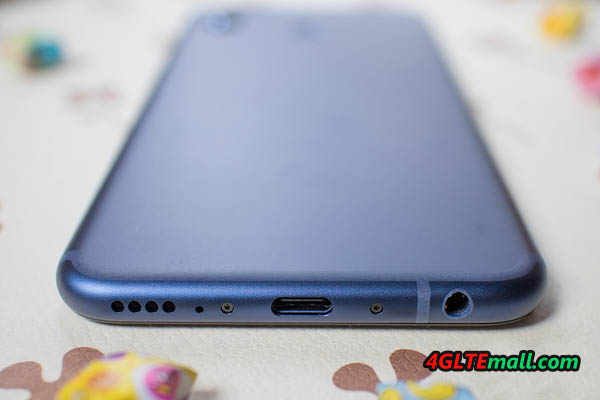
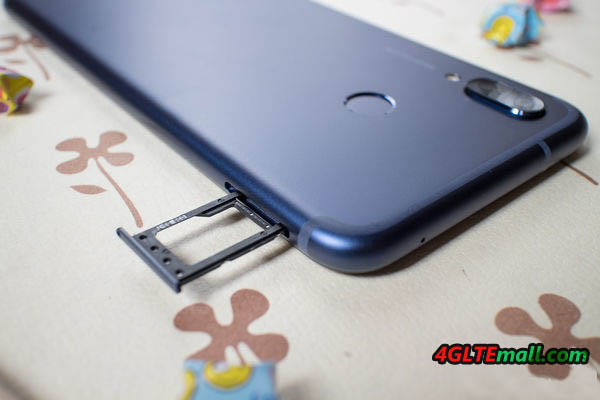
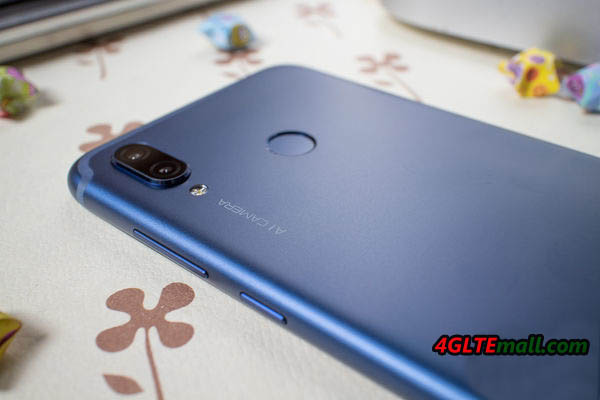
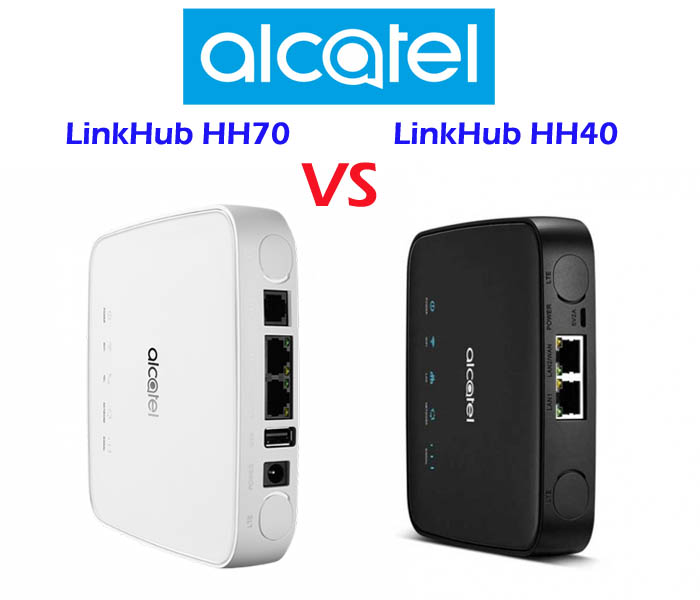
Many people know Alcatel 4G WiFi Hotspot, but few Alcatel 4G wireless router with Ethernet ports are well-known. Now Alcatel presented a new LinkHub series of wireless router for home use. The Alcatel LinkHub HH70 and HH40 are the two models for the home station. If you want to know the difference between LinkHub HH40 and HH70, you can check the specification table below for the comparison of the two 4G wireless wifi routers.
| Model | Alcatel LinkHub HH70 | Alcatel LinkHub HH40 |
| Product type | 4G WiFi Router with Ethernet port | 4G WiFi Router with Ethernet port |
| Category | LTE Cat.7 | LTE Cat.4 |
| Chipset | Qualcomm MDM9240-1 | Qualcomm MDM9207 |
| LTE Data rates | DL 300Mbps/UL 100Mbps | DL 150Mbps/UL 50Mbps |
| Supported 4G LTE frequency bands | Band 1/3/7/8/20/38/B40 | - EU Version(Alcatel HH40V): Band 1/3/7/8/20 - APAC/MEA Version(Alcatel HH40CM): Band 1/3/5(26)/7/8/20/28/38/40/41 |
| WLAN | 802.11a/b/g/n/ac, dual-band 2.4GHz & 5GHz | 802.11b/g/n, 2.4GHz |
| Max supported users | 64 users | 32 users |
| MIMO | 2 x 2 MIMO | 2 x 2 MIMO |
| Antenna | Two, SMA-female jacks | Two, SMA-female jacks |
| Buy Antenna | Alcatel LinkHub HH70 external antenna | Alcatel LinkHub HH40 external antenna |
| App management | Alcatel WiFi Link App | Alcatel WiFi Link App |
| SIM Size | Micro SIM | Micro SIM |
| Battery | NO | NO |
| Dimensions | 146 x 146 x 32 mm | 134 x 134 x 31.5mm |
| Interfaces | * 2x 1000Mbps RJ45 port (WAN/LAN) * 1x RJ11 telephone port * Two external LTE antenna ports (SMA) * One Micro-SIM card slot * 1 x USB 2.0 port | * 1 x LAN port(RJ45) * 1 x LAN/WAN port (RJ45) * Two external LTE antenna ports (SMA) * One micro-SIM card slot * 1 x Micro USB for power supply |
| Datasheet | LinkHub HH70 Datasheet(PDF) | LinkHub HH40 Datasheet(PDF) |
| User Manual | LinkHub HH70 User Manual(PDF) | LinkHub HH40 User Manual(PDF) |
| Other features | ||
| Firmware download | Linkhub HH70 firmware | Linkhub HH40 firmware |
| Driver | Linkhub HH70 driver | Linkhub HH40 driver |
| Reviews | LinkHub HH70 Review | LinkHub HH40 Review |
| Price/USD | 279.00USD | 169.00USD |
Summary
From the specs table, we can see the main difference focus on below point:
Speed:
Variant models:
LinkHub HH70 has only one variant model now, but Alcatel Linkhub HH40 has two models for different markets: Alcatel HH40V for EU and Alcatel HH40CM for APAC/MEA areas.
Interfaces: Comparing with Linkhub HH40, Alcatel LinkHub HH70 has an extra USB 2.0 port for external disk connection and printer, but it doesn’t has the Micro USB port which is available in LinkHub HH40.
Dimensions: Alcatel LinkHub HH70 is a little bit larger than Linkhub HH40 The Alcatel Linkhub HH70 is advanced than HH40, so the Linkhub HH70 price is higher than HH40. If you would like to buy one home router from the two routers, we recommend the LinkHub HH70.